PRACTICAL GUIDE · REAL IMAGE EDIT
Change the date and venue on a poster with AI
Have a finished event poster but need to change two details? Upload the image, spell out the exact replacements, and review the whole result before sharing.
In our test, Qwen Image 3 Pro changed the date and venue correctly on an English workshop poster. The composition stayed recognizable, but lettering and pixels outside the requested edits also changed. Use this approach when a close visual match is acceptable. If the original design must remain exact, edit its source file instead.
The actual before and after
We made the original Coffee and Clay poster for this test. The names, booking address and event details are fictional. The result below is the actual model output, with no manual retouching.
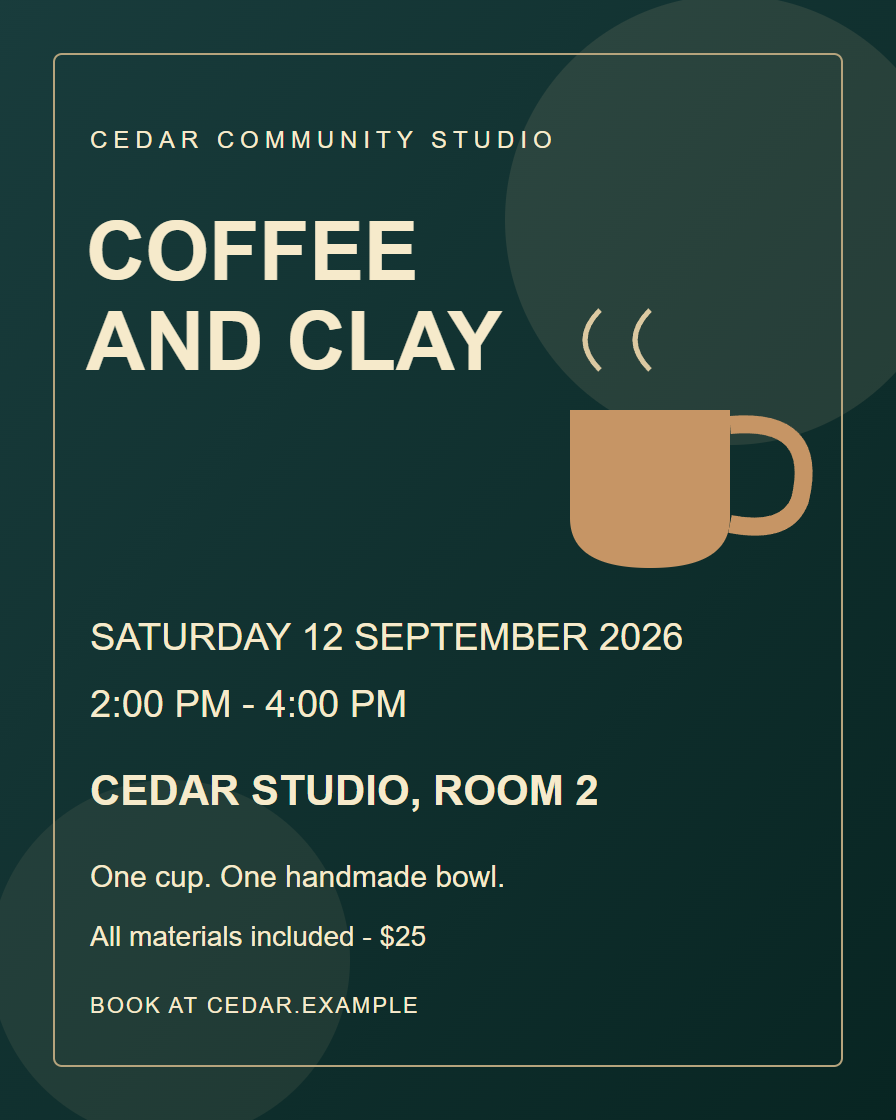
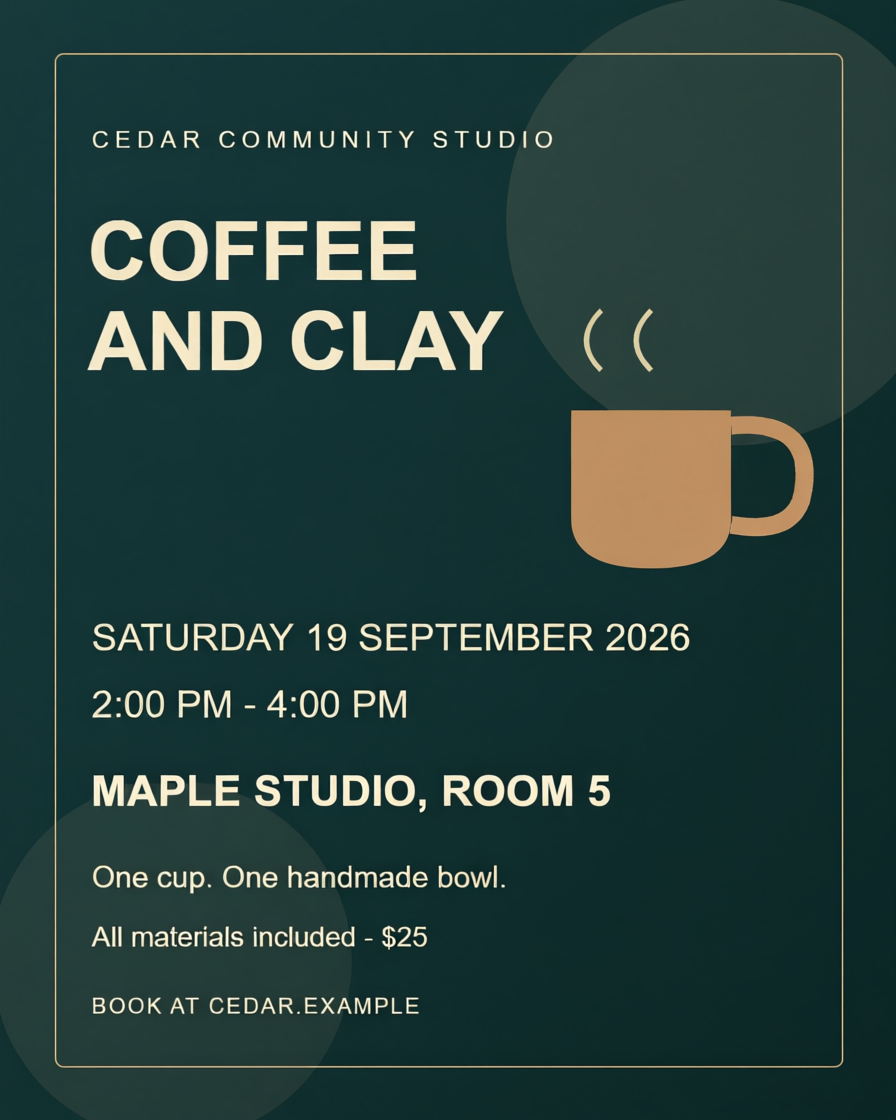
- Date: SATURDAY 12 SEPTEMBER 2026 → SATURDAY 19 SEPTEMBER 2026.
- Venue: CEDAR STUDIO, ROOM 2 → MAPLE STUDIO, ROOM 5.
- The other visible wording, including the time and price, remained correct in this result. Typography and pixels were not preserved exactly.
Test setup: one original 896 × 1120 PNG, Qwen Image 3 Pro, portrait 4:5, one generation. This is one successful English poster example, not a measured success rate across designs or languages.
1. Start with a clear poster image
Use your original exported image, with the whole poster visible and small print readable. Avoid screenshots with browser controls, heavy compression or cut-off edges. Download our sample above to follow the same example.
Open the image studio, select Qwen Image 3 Pro, upload the poster as your reference image and choose portrait 4:5 for this sample. Keep the original so you can compare it with the output.
2. Specify the old text and the replacement
Quote both strings exactly. Name the details to retain so the model has clear instructions. This is the exact prompt used for the result above:
Edit this supplied original event poster. Change only the exact date text "SATURDAY 12 SEPTEMBER 2026" to "SATURDAY 19 SEPTEMBER 2026", and change only "CEDAR STUDIO, ROOM 2" to "MAPLE STUDIO, ROOM 5". Match the existing typefaces, size, weight, alignment, cream color and background texture. Preserve every other word, time, price, illustration, border, circle and all untouched pixels exactly. Do not redesign or add anything. Return the edited full poster.
The prompt asks for unchanged pixels; the model did not fully meet that instruction. A preservation request is guidance, not a guarantee. Replace our quoted date and venue with your own details before generating.
3. Generate one version, then compare
Review the model, reference image and prompt before clicking Generate. The Qwen Image 3 Pro model page lists 4 credits per image. This workflow requests one image per generation, so one generation costs 4 credits; check the total shown in the studio before submitting. Each further generation uses credits too.
When the result is ready, compare it with the original at full size. Check the replacements first, then every detail you did not ask to change:
- Spelling, digits, punctuation and spacing in the date and venue.
- Time, price, booking address and other small print.
- Logo shapes, illustrations, borders, alignment and margins.
- Anything that has become blurry, distorted or cropped.
If an important detail is wrong, do not share that version. Revise the instructions and review any new result again, or return to the editable source file for a precise correction.
4. Download and check the final image
Download the result from the studio and open the saved file before posting it. Check legibility at the size people will actually see. The output is a flat image without editable text layers. This sample is a digital poster, not a verified print-ready file.
Common questions
Can AI change only the words without changing anything else?
Not reliably in this tested workflow. The requested words changed correctly, but lettering and pixels elsewhere changed too. Use the editable source when exact font, logo or background preservation matters.
Can I edit a poster without its original design file?
You can upload a flat image as a reference and request a revised image. This does not recover the source file or create editable text layers.
Will this work for other languages or dense posters?
This guide demonstrates one simple English poster. We have not established reliability for multilingual text, dense schedules, QR codes or brand-critical artwork. Check those elements separately.
What if I need a new poster instead?
Use the event flyer and poster generator to start from a brief. This tutorial is for revising an existing image.