PRODUCT PHOTOGRAPHY · SINGLE-IMAGE EDITING
AI product photography.
Choose your starting image.
Upload one product photo and describe a studio or lifestyle setting to generate a new still image. Starting from an idea instead? You can also create a product-style concept from text. These are different workflows; neither guarantees unchanged product details.
Prepare a one-photo scene edit →One JPG, PNG or WebP · up to 5 MB
GPT Image 2 recommended · 5 credits per generation
Sign in and check your balance before generating. New accounts receive 4 trial credits; this 5-credit option needs more than that initial balance. Opening the studio does not spend credits.
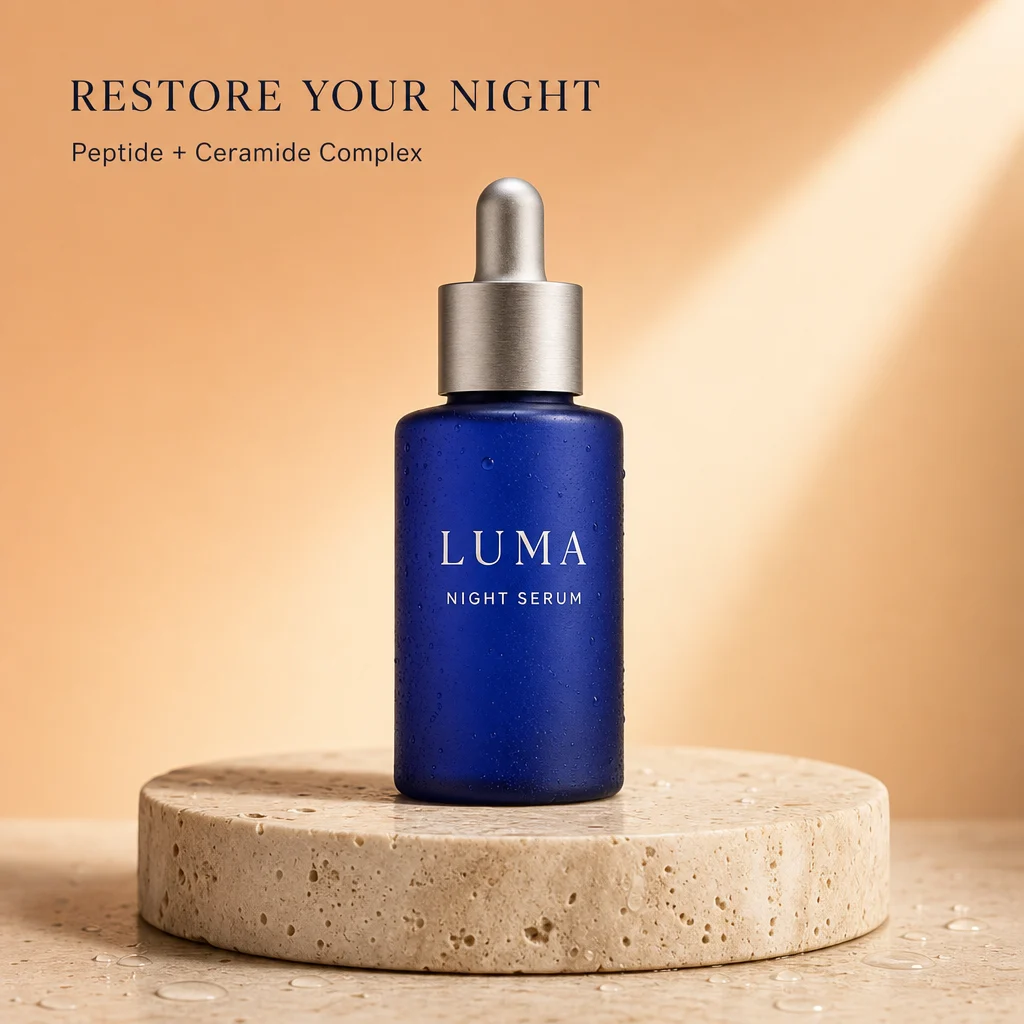
Generate a new product image or edit an existing product?
Text only: create a product-style concept
Describe the object, surface, lighting and background. No product photo is required, so the output depicts an invented product rather than verifying one you sell. Open GPT Image 2 and choose Create for a text prompt at 5 credits per image. Remove any selected reference and replace the prompt before generating.
One product photo: describe a new scene
The main button selects GPT Image 2 and prepares an editable scene brief. Review the selected file, upload one JPG, PNG or WebP up to 5 MB, then check the 5-credit cost. AI can redraw the product as well as its setting; inspect shape, logo, label and packaging against your source.
Product plus a supplied background: combine two references
If you already have the background image, use AI Image Combiner. It selects Nano Banana 2.1 and requires the product first and the scene second: two JPG, PNG or WebP files, up to 5 MB each, at 6 credits per generation.
Our separate two-reference composition test shows the synthetic product input, drawn backgrounds and retained outputs. The corrected warm example was acceptable for that controlled scene; the cool example retained unwanted water drops and changed the pedestal. Those are combiner results, not results from this page's one-photo workflow.
Changing color instead? See the separate product-color edit tests. Read the Nano Banana 2.1 model guide or use Image Compare to inspect your source and result. Exact cutouts or unchanged label pixels need a conventional editor.
FROM PHOTO TO SCENE
A clear photo. A specific brief. A careful review.
Upload your product
Use a sharp, well-lit photo you have permission to edit. Keep the whole product visible. Reflections, tiny labels and hidden edges are harder to reproduce.
Describe the setting
Choose a surface, background and light direction. The studio starts with an editable window-light brief; replace it with the scene you need.
Check before you publish
Compare the result with your source. Check the shape, color, quantity, logo and every label. Download the result only if it represents your product accurately.
START WITH THIS BRIEF
Give the scene direction.
This editable prompt opens in the existing image studio with GPT Image 2 selected. Upload your own photo before generating.
Explore GPT Image 2 and its examples →Use the uploaded product photo as the reference. Keep the product shape, color, material and visible label as close to the reference as possible. Place it on a light stone tabletop beside a softly lit window, with a warm neutral background and a natural contact shadow. Show one product. Do not add text, extra products or decorations that cover the product.
Before you make your first scene
Will the product stay exactly the same?
No. AI editing can change geometry, colors, logos and packaging text. Instructions help guide the result, but do not guarantee product fidelity. Compare every result with the original and reject inaccurate images.
Can I use this for marketplace listing images?
You can explore lifestyle concepts, but this tool does not certify marketplace compliance. Check the rules of your marketplace and the accuracy of your image before publishing. It does not provide guaranteed white-background cutouts or transparent exports.
What does it cost, and can I upload a whole catalog?
The recommended GPT Image 2 model uses 5 credits per generation. The studio shows the selected model's cost before you generate. This workflow accepts one reference photo at a time; it does not offer batch catalog processing. See current plans.
What happens to my uploaded photo?
The image is sent for processing when you submit a generation. Results are stored privately for your account. If you reload or leave the page, you may need to upload the reference again. Read the privacy policy.