PRACTICAL GUIDE · PROMPTTOVISUAL
Replace a Product Background with AI: Two-Reference Guide
Put a product on a new background using two reference images and Nano Banana 2.1. See real inputs, results, limits and the 6-credit cost before generating.
Put your product on a new background
Use an existing product photo plus an existing target scene. This generates a new composition; it does not paste unchanged product pixels.
Inspect the actual inputs and outputs first →
- Save the product reference and warm background. These are synthetic demonstration inputs, not customer photographs.
- Open AI Image Combiner. Upload the product first and the background second. Use square output for these sample files.
- Copy the template below and adapt it to your images. Check the displayed 6-credit cost and available balance before submitting.
Take only the product from reference 1 and place it on the surface in reference 2. Keep the product silhouette, main color and label recognizable. Preserve the base scene layout and pedestal shape, adding a natural contact shadow. Do not copy the old headline, old background or old pedestal from reference 1. Do not add extra products, words or objects.
This is an adaptable template, not a guarantee of unchanged details. Copying it does not start generation. Do not include instructions about another background or an object absent from your chosen inputs.
Decide whether the result is usable
- Product: one bottle, recognizable shape and cap, readable label, correct main color.
- Background: the requested pedestal and composition, with no extra plants or objects.
- Scene: a plausible contact shadow, without unwanted droplets or elements carried from the old background.
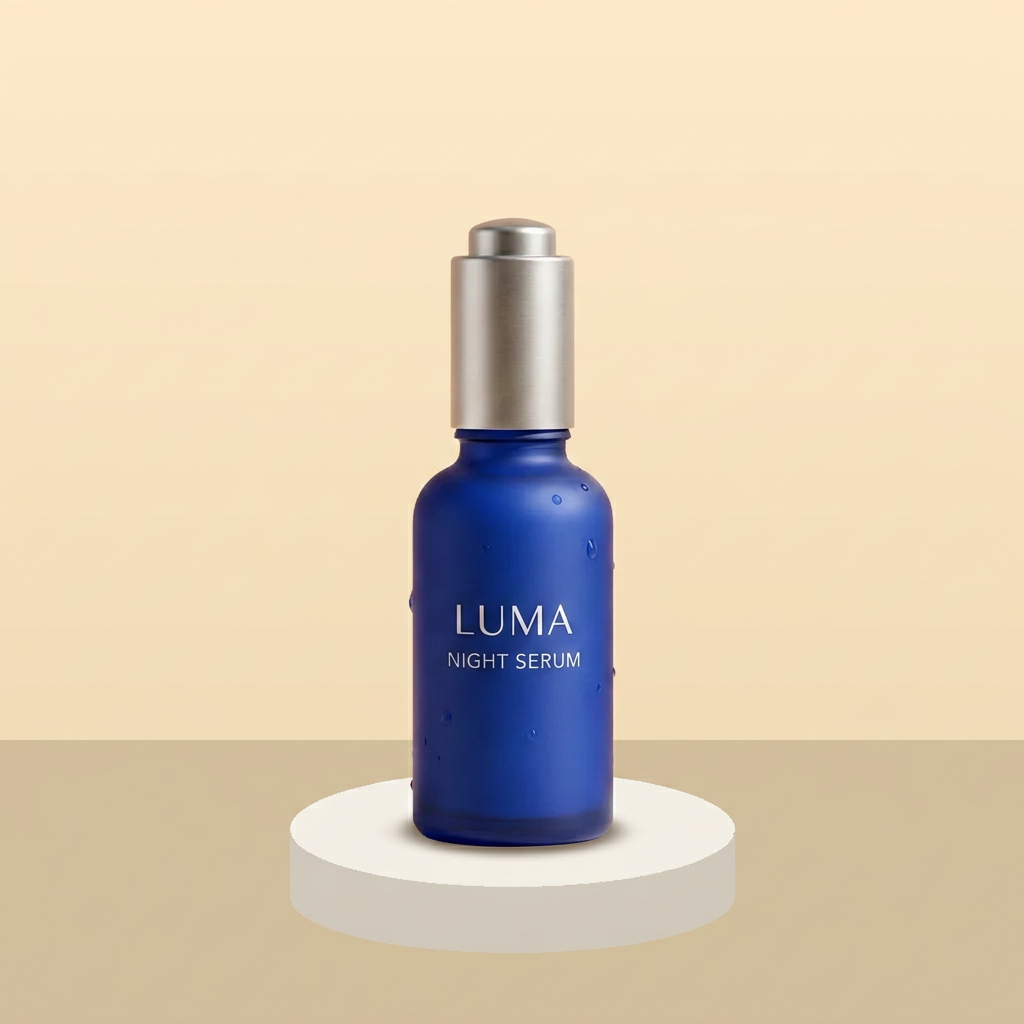
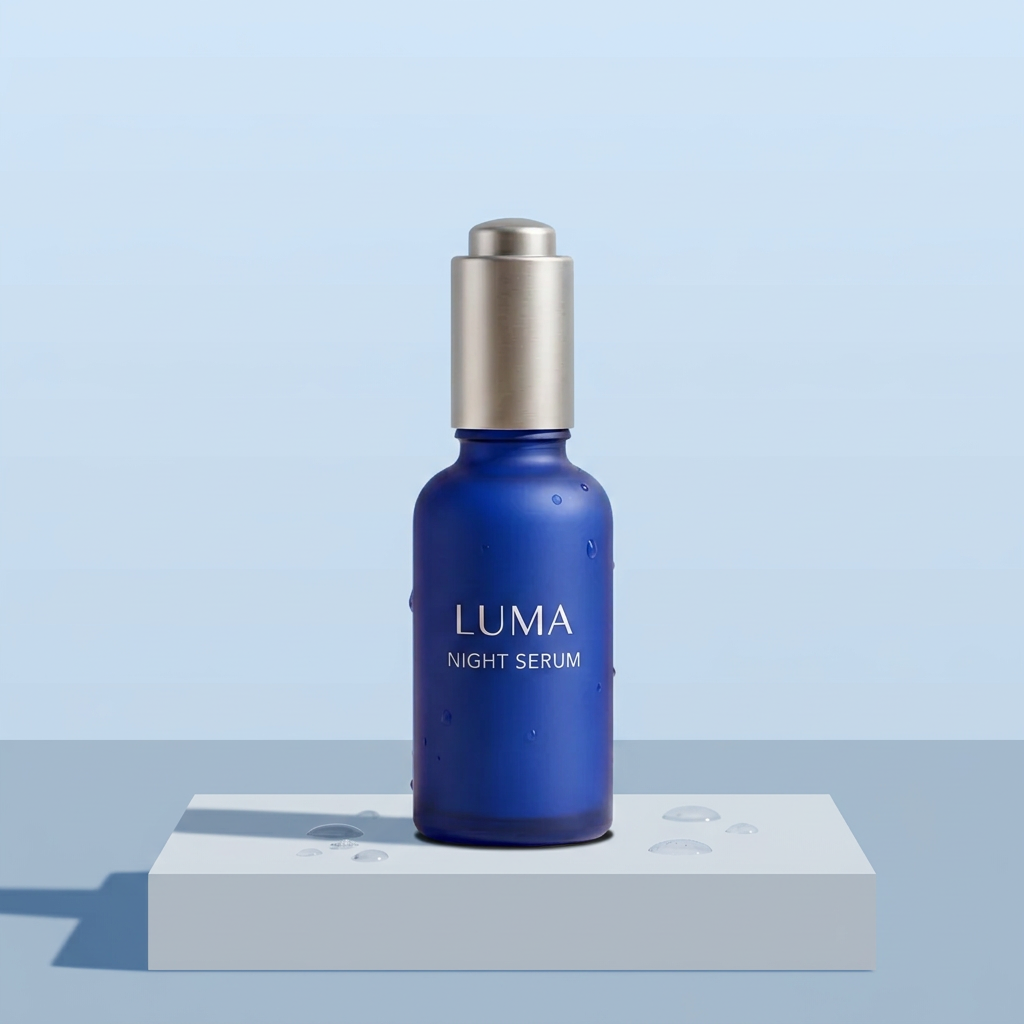
The warm result below was acceptable only for this controlled example. The cool result failed the stricter background checks. Compare both references against your output using Image Compare; a successful download does not mean the composition met your brief. Keep the sources for later revisions.
Real inputs and retained background-change results
These retained Nano Banana 2 outputs predate the 2.1 upgrade and do not demonstrate 2.1 performance. These owned files reuse the existing experiment: one synthetic product advertisement, two drawn target backgrounds and the two corrected-run outputs. They are not new generations or customer photographs.
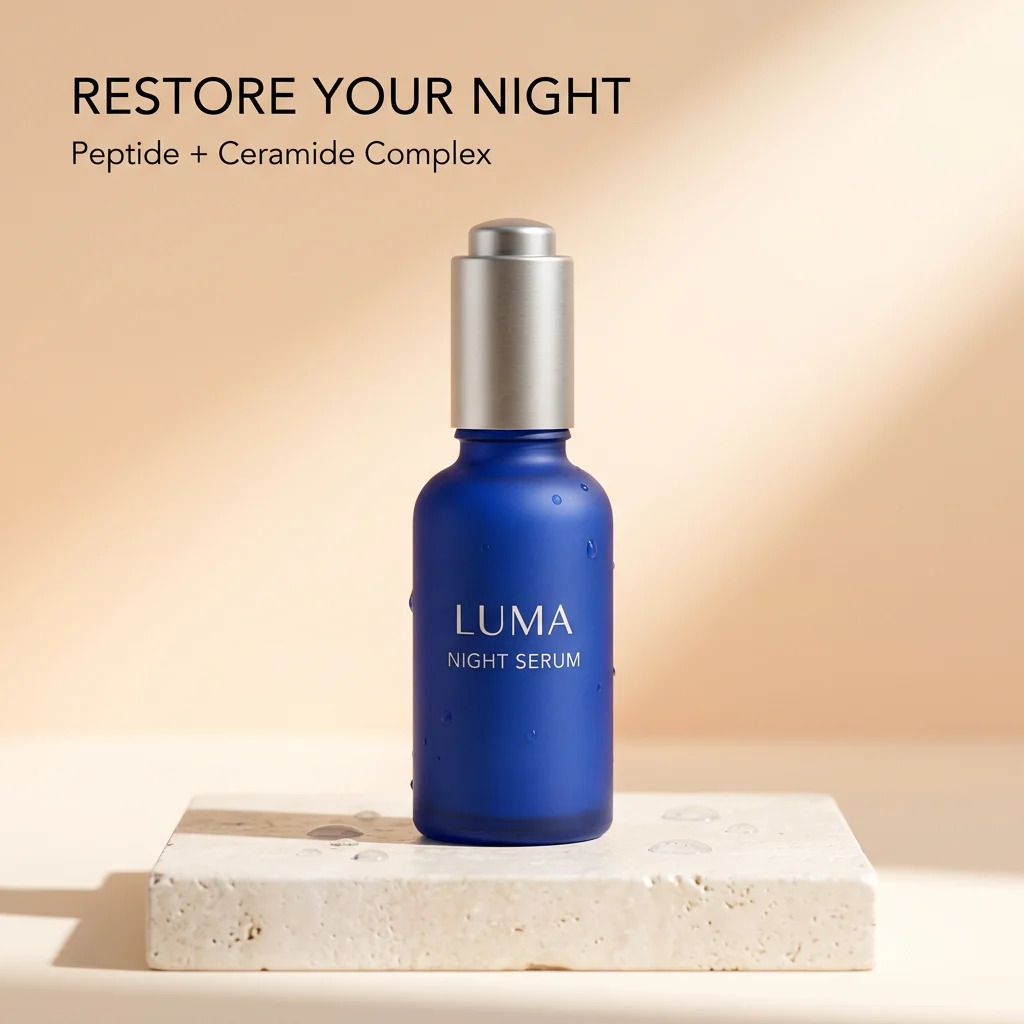
Reference 1: the product to place in a new scene
Warm example: target background and actual result

Cool example: a polished result that failed strict preservation

Neither result guarantees exact labels, logos or original product pixels. Use Image Compare to inspect a source and its output. Choose a cutout-and-layer editor when those details must stay exact.
Prepare your product and new background →
Nano Banana 2.1 · 2 required references · 6 credits per generation. Opening the combiner does not generate an image.
Current model and reference limits · Add exact final text · Stitching versus generating a scene · All image guides
Can AI replace a product background?
Yes, AI can generate a new scene guided by your product photo and a separate background image. In this workflow, reference 1 supplies the product and reference 2 supplies the target setting. Changing a product background this way is generative composition, not a pixel-perfect replacement: the product and the scene can both be redrawn. This guide uses one owned synthetic LUMA bottle and drawn backgrounds to show what that means in actual results.
Is this the same as removing a background?
No. Generative composition is not the same as background removal. A cutout-and-layer workflow isolates the photographed product with a mask and places those source pixels over another background; you control the mask, placement and any lighting edits. An AI product background workflow generates a new flat image from references and instructions. Use a conventional editor when exact packaging, label text, logo geometry or unchanged product pixels are required. A polished AI result does not establish those properties.
1. Put the product in reference 1 and the new background in reference 2
Reference 1 should clearly show the product you want to retain. Reference 2 should show the target scene with room for that product, such as an empty pedestal or tabletop. Both references are required here. Upload the product first and the background second; they remain separate inputs rather than a contact sheet. Use JPG, PNG or WebP files up to 5 MB each. This tutorial starts with an existing target background, rather than asking a product background generator to invent one from text alone.
2. Describe one finished scene
Name the product reference, the background reference and a placement visible in that background. Say which product details matter, what should remain recognizable and what to omit from the original setting. The template above asks for one bottle, the target pedestal and a contact shadow while excluding the old headline and background. These are instructions, not preservation guarantees. Avoid asking for several alternative scenes in one prompt.
3. Review Nano Banana 2.1 and the 6-credit cost
PromptToVisual selects Nano Banana 2.1 for this two-reference workflow. It costs 6 credits per generation, with sign-in and sufficient credits required. Opening the combiner, preparing a prompt or choosing files does not start generation. Review the inputs, balance and aspect ratio, then select Generate once. A further attempt is another generation and uses credits; a completed image that misses your visual requirements is different from a technical failure.
Why was the warm result acceptable but the cool result not?
The corrected warm output showed one recognizable blue bottle on a round pedestal with no added plant. It was acceptable for that controlled composition, not proof of exact original pixels. The corrected cool output still carried water drops from the product source into the new scene and changed the pedestal. It looked finished but failed our stricter scene-preservation requirement. Compare each output with its own background reference, not just with the bottle.
Which product details can change?
Inspect the silhouette, cap, color, label spelling, logo geometry, reflections and product count at full size. Also check the pedestal shape, background objects and contact shadow. Generative composition can change any of these even when the main product remains recognizable. We have not established exact label or logo preservation, reliable person insertion or face preservation with these product examples. Keep the original files available for comparison.
What does this small experiment establish?
The first six calls used a flawed cross-scene prompt with an irrelevant plant instruction. They cannot fairly measure background preservation or support a success-rate benchmark. Two later calls used corrected prompts: the warm and cool results shown above are those retained outputs. One synthetic product and drawn backgrounds establish only this narrow feasibility example, not general reliability for glass, hair, complex packaging, people or arbitrary commercial photographs. No new output was generated for this guide update.
When should I use a cutout or layer editor instead?
Use a mask and layers when the original photographed product must remain exact, when a label or logo cannot change, or when you need an editable project for final production. Choose AI composition when a newly generated interpretation is acceptable and you can inspect the whole result. Adding exact final text afterward can solve a caption task, but does not repair a distorted product or restore its original packaging. If you only need two pictures beside one another, use a layout tool rather than a generative model.
Choose the next step for your product image
If the limits fit your task, open AI Image Combiner with your two source files ready. Prepare the instructions, sign in when needed and review the model and 6-credit cost before generating. Compare and save a useful result before deciding whether another request is worthwhile. If strict preservation is essential, keep the original photo and use a cutout-and-layer workflow instead.
Continue with the right tool
AI image combiner · Stitch images · Photo collage · Nano Banana 2.1 guide · Related composition guide