PRACTICAL GUIDE · PROMPTTOVISUAL
How to Change a Product Color with AI: Real Before-and-After Tests
See one source product image edited from blue to green with GPT Image 2.5 Flare and Sunburst, then reproduce the color-change workflow and inspect what else changed.
Actual source and retained edits
These are the same owned files already used on the Images 2.5 model pages. They are shown together here so the requested color change can be inspected against the original.
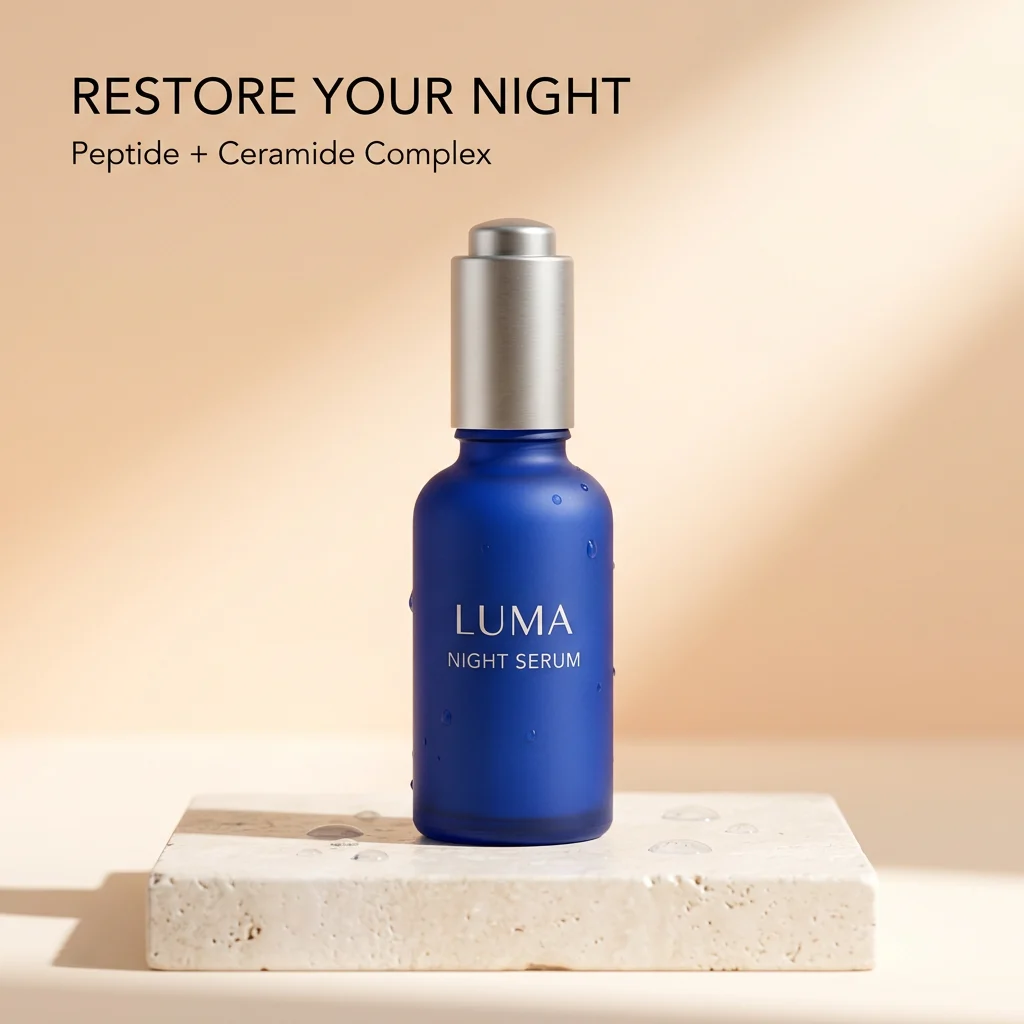 Original reference →Blue bottle source supplied to both edits.
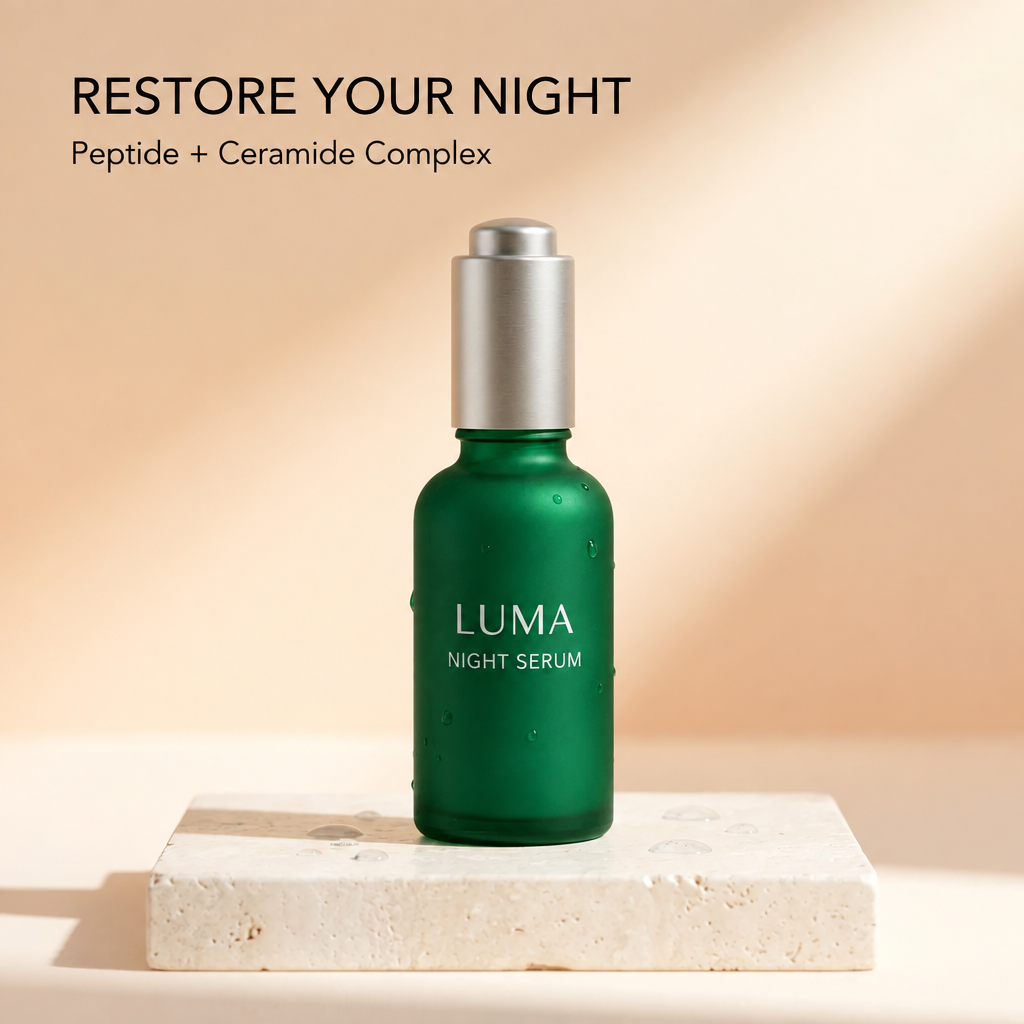 Flare edit →Actual retained result · 6 credits in the current studio.
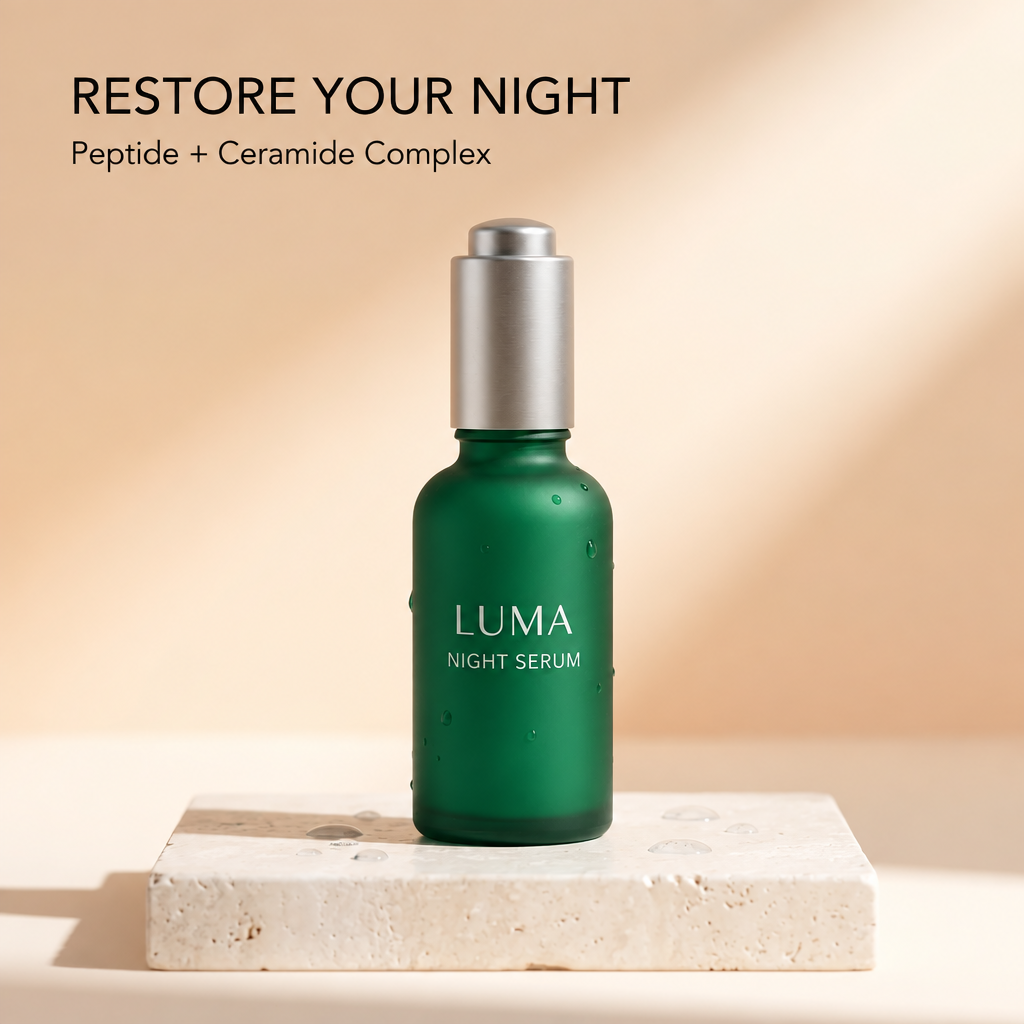 Sunburst edit →Actual retained result · 6 credits in the current studio.
Open Flare and its full test notes → · Open Sunburst and its full test notes → · Compare two downloaded images →
What this guide actually tested
We used one existing synthetic LUMA product advertisement as the reference for two separate GPT Image 2.5 edits. Both Flare and Sunburst received the same instruction to change only the bottle color from blue to emerald green while preserving the silver cap, label, placement and background. We retained the first returned result from each model rather than choosing a favorite from several attempts.
The prompt used for both edits
Change only the bottle color to emerald green. Keep one bottle, its silver cap, label text, placement and the original background. Do not add objects. This is intentionally narrow: one requested change makes it easier to inspect whether other details drifted. Adapt the color and product details to your own reference rather than copying the LUMA wording into an unrelated job.
What changed besides the color?
Both retained results make the bottle green while leaving the main composition recognizable. They are not pixel-preserving recolors. Surface texture and small details differ from the source, so the output must be checked beyond the requested color. A plausible edit is not proof that packaging, logo geometry or every background pixel stayed identical.
How to reproduce the workflow here
Choose GPT Image 2.5 Flare or Sunburst, upload one JPG, PNG or WebP reference up to 5 MB, describe the single color change and review the selected model before submitting. Each completed generation or single-reference edit currently costs 6 credits in PromptToVisual. Preparing the prompt or opening this guide does not consume credits.
Flare or Sunburst?
OpenAI positions Flare as the default lower-latency Images 2.5 API option and Sunburst for more precision-oriented creative work. Our two retained edits are too small a sample to declare a universal winner. If color preservation matters for your product, compare the same source and instruction and decide what details count as acceptable before running both.
When should you use a conventional editor instead?
If you need an exact hue replacement on unchanged pixels, editable layers, a mask around a logo or a production file that must preserve every edge, use a deterministic image editor. Generative editing is useful when a semantic instruction is acceptable and you are willing to inspect the whole result. Keep the original asset available for comparison.
What should you inspect before publishing?
Check product count, silhouette, cap or hardware, label spelling, reflections, shadows, background objects and the exact requested color. Use the local Image Compare tool for side-by-side review. Download a useful result before requesting another version because another completed generation uses credits again.
Continue with the right tool
AI image combiner · Stitch images · Photo collage · Nano Banana 2 guide · Related composition guide