Describe the outcome
Start with a simple prompt. The task-aware enhancer can add useful composition and quality instructions without replacing your idea.
FASTEST · QUALIFIED
The low-cost speed choice for testing several visual directions before moving a favorite prompt to a premium model.
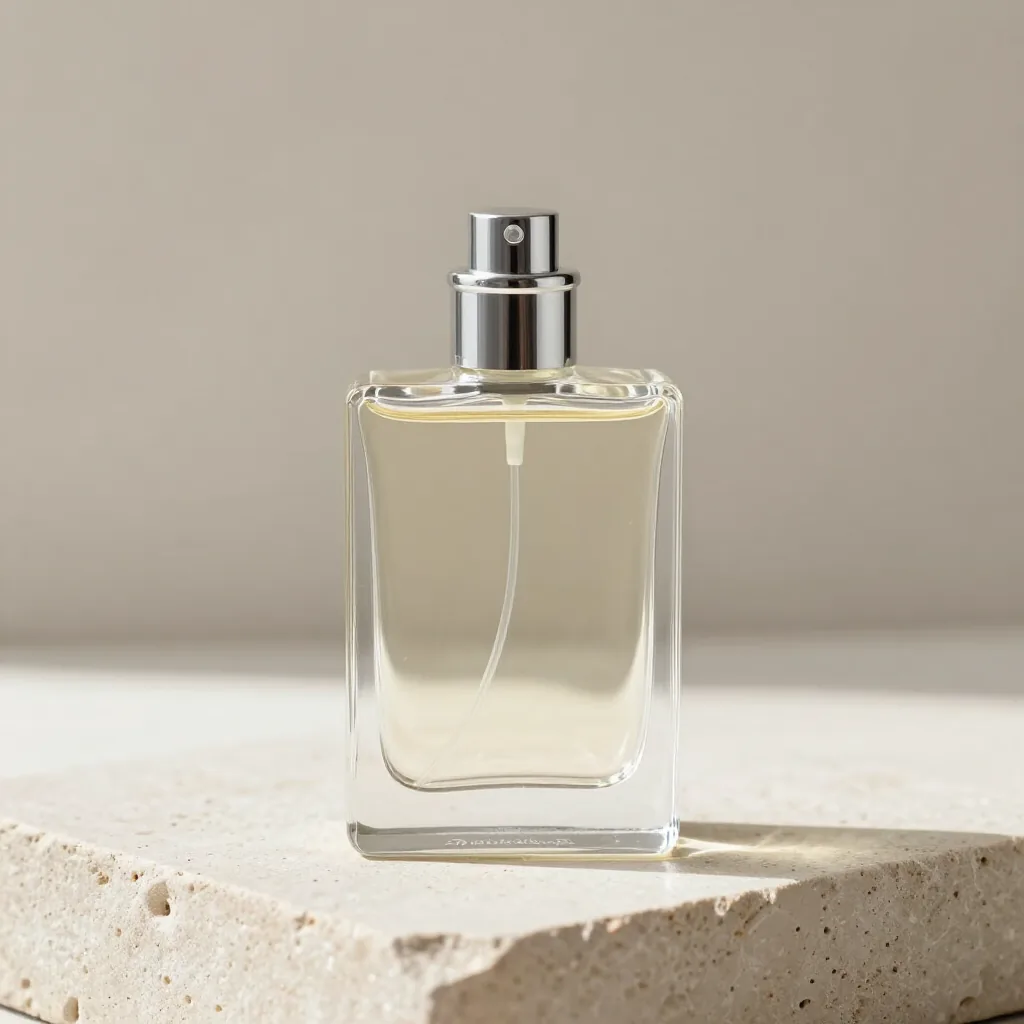
OWNER-APPROVED REAL OUTPUT
This is one paid 1024×1024 run using the same LUMA Night Serum prompt as the other model examples—no paid retry and no selected best-of batch.
Start with a simple prompt. The task-aware enhancer can add useful composition and quality instructions without replacing your idea.
The exact credit cost is visible before generation. Failed or blocked jobs restore reserved credits once.
Results land in the same private creation history, even when you change models between attempts.
Use Z-Image Turbo to explore a visual direction before refining a finished asset. In this workspace it accepts a text prompt, not an uploaded reference image. That makes it a practical starting point for a new background, composition or concept, but not the route for changing an existing photo. Describe the subject clearly and choose one main visual idea for each attempt. The lower credit cost can make a small, planned comparison less expensive, but a low cost does not guarantee that the first result will suit your task.
Adapt this illustrative prompt to your own subject. It is not the prompt used for the shared product example above, and no output is claimed for this example.
Create a square concept image of a small ceramic coffee cup on a pale stone table beside a window. Use soft morning light, a warm neutral palette and a simple composition with empty space above the cup. No lettering or logos.
Review composition before small details. Is the cup the main subject? Is the requested empty space available? Do the shadows point in a plausible direction? If the broad layout is wrong, change the composition instruction before adding a longer list of decorative details. This example is a starting prompt, not a measured claim about repeatability or a supplied test result. Once you have a useful direction, keep the wording so you can compare it with another model rather than relying on memory.
For a social graphic, generate the background first and add exact wording with the local Add Text tool afterward. This separates visual exploration from deterministic caption placement. If you already have a product photo whose shape must remain recognizable, choose an editing-capable model instead of describing the product from scratch. Z-Image Turbo does not receive your source photo through this interface. Keep your original reference available when you switch to a model that supports editing. Enlarging a generated draft also does not recover missing fine detail; inspect the final downloaded dimensions before using it for print.
The catalog currently lists 2 credits per image for this option. The amount shown in the studio before submission is the relevant check for your request. Browsing a model page and preparing a prompt do not generate an image. A new generation is a new request, including when you change only a few words. Plan a small comparison around a specific question rather than repeatedly submitting the same uncertain brief.
The shared commercial example shows one completed output from the same product-ad brief used on the other model pages. It helps you inspect that particular composition and visible lettering. It is not a statistically representative benchmark, a promise about average speed, or a guarantee of success on your own materials. Compare the full images instead of treating a badge or a short role description as a universal ranking. Model choice is most useful when tied to the detail you actually need to improve.
Generated results are flat images. They do not restore the source document, editable text boxes, vectors or separately selectable objects. An instruction to preserve a detail is not a pixel lock. For exact wording on an otherwise finished image, use a deterministic text overlay when that fits the task. For exact changes to an existing design, the original editable file is often the clearest route. Keep the source image so that you can compare changes and return to it if a generated revision is unsuitable.
Separate a completed image that does not match your preference from a failed generation. A successful output may still need a different composition or more accurate wording; another attempt uses credits. If the interface reports a failure, follow its visible status and check your balance before retrying. Do not submit several duplicate requests while waiting. Save a useful result before experimenting further, and inspect the downloaded file at its intended display size rather than relying only on the studio thumbnail.
Comparing fast text-to-image workflows? Read the source-checked Recraft V4.1 Flash guide. Recraft Flash is not hosted by PromptToVisual; this link compares documented speed, price and input limits rather than treating the two models as equivalents.
Add exact text · Compare two images · Crop the finished image · Read the tested poster-edit guide
Nano Banana 2 Lite →Qwen Image 3 Pro →GPT Image 2 →Nano Banana 2.1 →GPT Image 2.5 Flare →GPT Image 2.5 Sunburst →Grok Imagine Image 2 →
COMPARE BEFORE YOU SPEND